
Stacks Image 367

CONFERENCE APP INFO FOR PRESENTERS
UPDATING YOUR SPEAKER PROFILE
Stacks Image 417
  • Go to https://dashboard.ascaconferences.org/admin
  • Log in with the email address used for your session proposal.
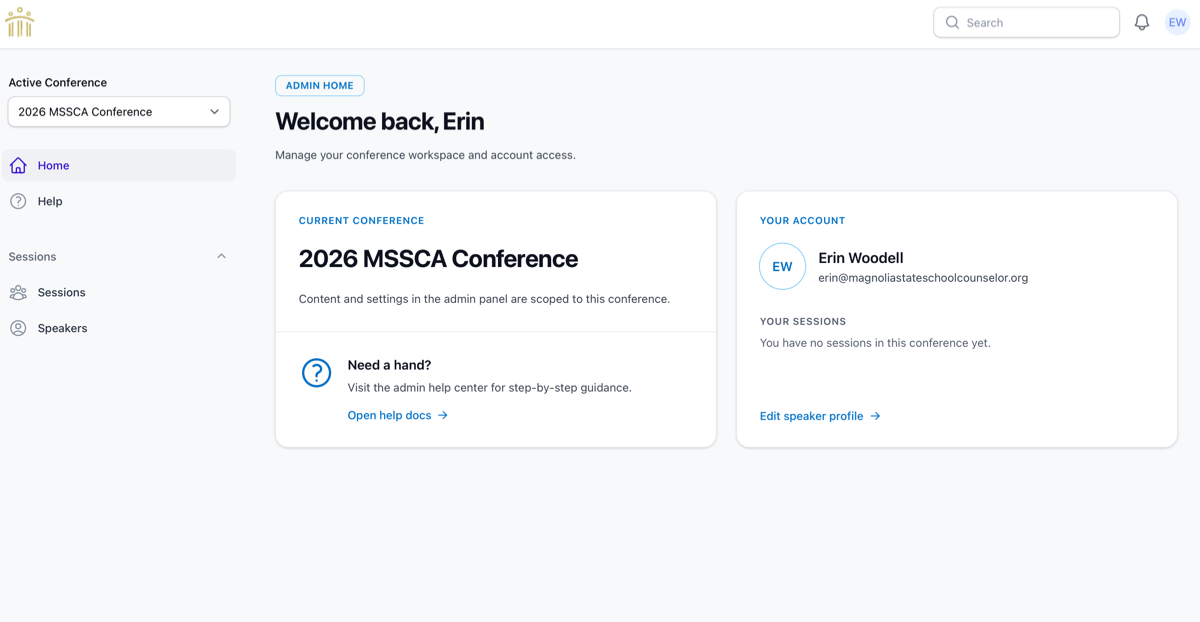
  • Once logged in, verify that 2026 MSSCA Conference is listed as the Current Conference (box on the left)
  • To update your speaker profile, click on the Edit Speaker Profile link at the bottom of the Your Account box on the right.
  • Proceed with adding your position, institution, and bio.
  • Don't forget to click SAVE when you're done!
ADDING YOUR PHOTO
  • From your desktop or laptop computer, go to https://app.ascaconferences.org/ and login using the same credentials you used to update your speaker profile.
  • Click on View Profile
  • Click on the placeholder avatar
  • Upload your preferred photo.

This can also be done within the app itself. Instead of accessing the URL above, launch the ASCA Conferences app from your phone.
ADDING YOUR SLIDE DECK AND HANDOUTS
Stacks Image 442
Stacks Image 460
  • Go to https://dashboard.ascaconferences.org/admin
  • Log in with the email address used for your session proposal.
  • Once logged in, verify that 2026 MSSCA Conference is listed as the Current Conference (box on the left)
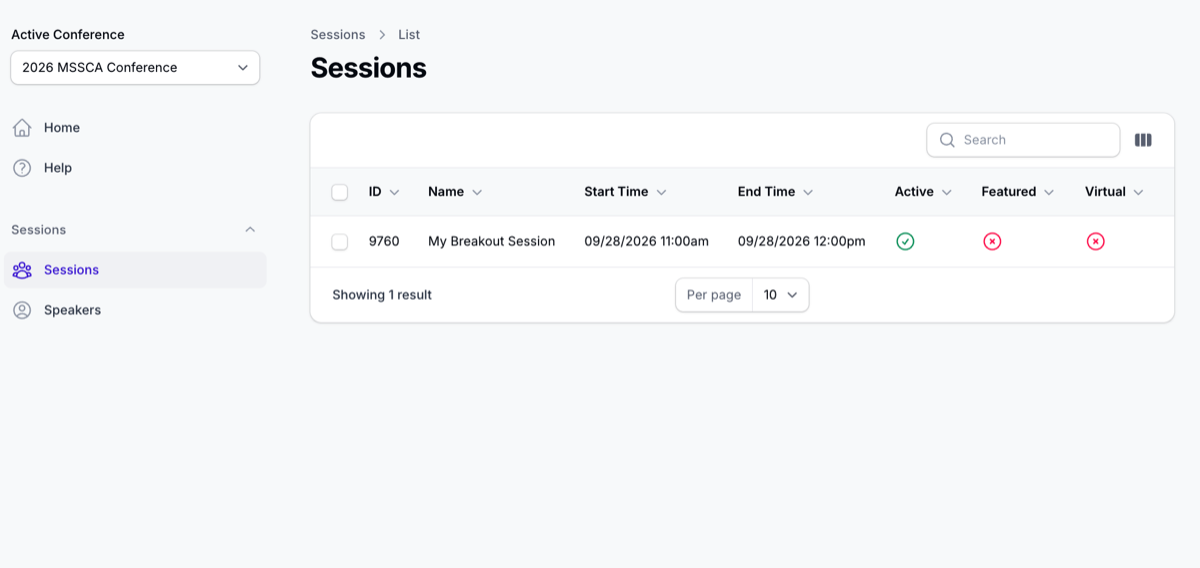
  • Click on Sessions on the far left side of the screen.
  • Sessions you are presenting will appear in the box. Click on the session you are speaking for.
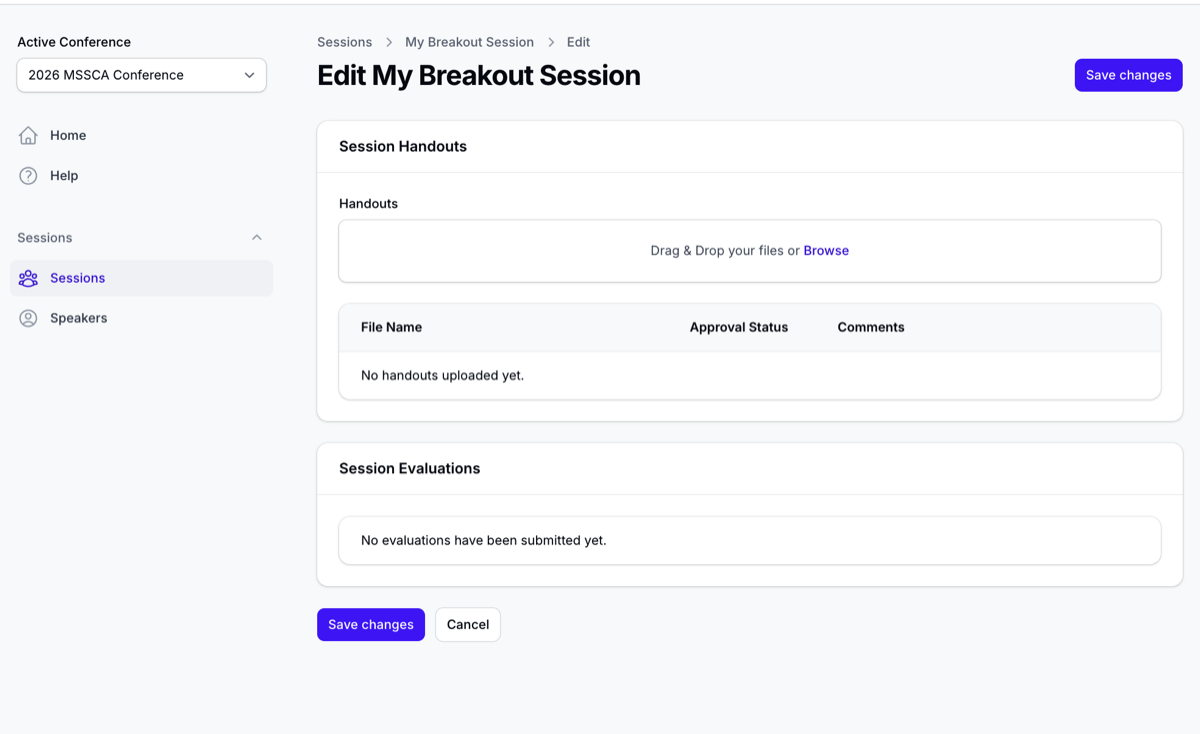
  • To add your slide deck and handouts, either click within the "Handouts" area to upload your file or drag and drop a file
  • Once the upload is complete it will turn green.
  • IMPORTANT: Click on SAVE CHANGES. Your uploads are not saved until you click SAVE CHANGES.
FILE TIPS
  • Only PDF files are accepted. Please convert all slide decks and documents to PDF before uploading.
  • There is a 10MB maximum per file. If your file is larger than 10MB, please divide it into smaller sections. You may upload as many files as needed, as long as each is under 10MB.
TO VIEW YOUR EVALUATIONS
Stacks Image 462
  • Go to https://dashboard.ascaconferences.org/admin
  • Log in with the email address used for your session proposal.
  • Click on Sessions on the far left side of the screen.
  • Sessions you presented will appear in the box. Click on the session you wish to view evaluations for.
  • Any evaluations submitted will appear on the screen in the box under your handouts.

Magnolia State School Counselor Association
PO Box 5053 | Brandon MS 39047-5053
conference@magnoliastateschoolcounselor.org | magnoliastateschoolcounselor.org


© 2026 Magnolia State School Counselor Association